WordPress websites are targeted by automated attacks every day. For businesses, developers and digital agencies, the real frustration often begins when a website is cleaned, restored and secured, only for the malware to return a few days later. At VPSBlocks, we regularly encounter hosting environments affected by compromised WordPress installations. Sometimes the infection is obvious, with visitors redirected to suspicious websites. Other times, malicious scripts remain hidden for weeks or months, quietly modifying files, creating spam pages or providing attackers with continued access.
A WordPress website that keeps getting hacked may not be experiencing repeated independent attacks. The original compromise may never have been completely removed.
Understanding why this happens, and knowing where to look beyond the obvious infected files, is essential to achieving a lasting cleanup.
WordPress is widely used, making it an attractive target for automated vulnerability scanners and malicious bots. Common entry points include outdated plugins, vulnerable themes, weak administrator passwords, insecure custom code and compromised hosting credentials. However, not every malicious request represents a successful attack. A website receiving thousands of requests against wp-login.php, xmlrpc.php or known plugin vulnerabilities may simply be experiencing unsuccessful automated scanning. A successful compromise occurs when an attacker gains unauthorised access or manages to execute malicious code. Once that happens, the attacker may install additional scripts, modify WordPress configuration files, create administrator accounts or inject content directly into the database.
Removing visible malware is not the same as removing the underlying compromise. For example, a developer might replace the WordPress core files and remove an infected plugin. The website appears clean, but an attacker has already installed a hidden PHP script outside the WordPress directory. A few days later, that script recreates the infection.
Other common persistence methods include:
This is why a proper cleanup must involve the WordPress installation, its database, the hosting account and potentially other websites sharing the same environment.
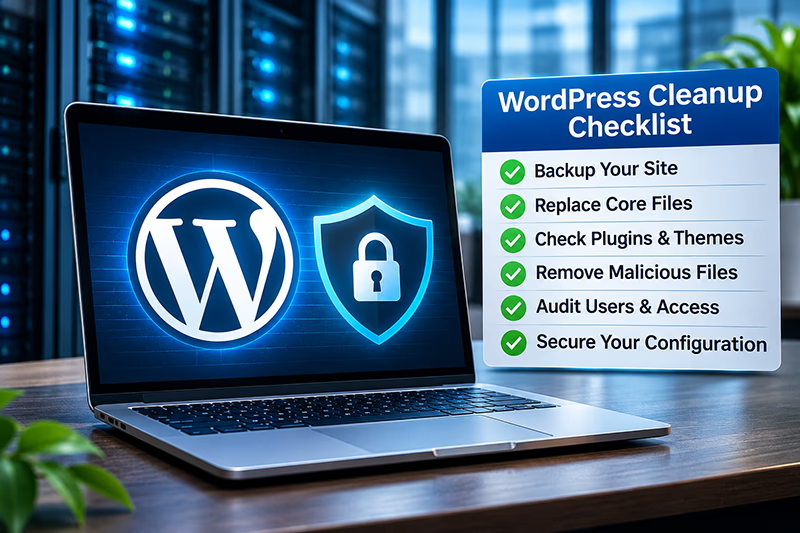
If your WordPress website has been compromised, the following process provides a structured approach to identifying and removing common infections. These instructions are intended for website administrators and developers who are comfortable working with WordPress files, databases and hosting control panels.
Important: Before starting, preserve a complete backup of the compromised website. If the website handles customer information, financial transactions or sensitive data, consider taking it offline temporarily and investigating whether information has been exposed. If you are unfamiliar with database administration or server configuration, professional assistance is recommended.
1. Back up the website and investigate older restore points
Take a complete backup of the website in its current state, including all files and the database. Next, determine whether a clean backup exists from before the infection. A backup from seven or more days before the incident may be a useful starting point, but remember that some infections remain undetected for months.
If restoring an older backup, consider any orders, customer registrations, content changes or other important database activity that occurred afterwards.
2. Replace the WordPress core files
If a clean backup cannot be restored, download the latest official WordPress release from WordPress.org. Remove and replace the wp-admin and wp-includes directories, along with the standard WordPress core files in the website root. Preserve wp-config.php and any verified legitimate custom files. Do not blindly delete every PHP file, as some websites contain application-specific customisations. Investigate unfamiliar root-level PHP files that do not belong to the standard WordPress distribution.
3. Inspect the WordPress uploads directories
Check /wp-content/uploads/ and its subdirectories for unexpected executable scripts. PHP files are particularly concerning because attackers frequently place web shells in uploads directories. Also review unfamiliar JavaScript, CSS and HTML files. Some legitimate plugins generate these files, so verify their purpose before removal.
4. Replace WordPress plugins with clean copies
Record every installed plugin, including inactive plugins and their versions. Download fresh copies from the official WordPress repository or the original plugin vendors. Replace existing plugin files with verified clean versions. Pay particular attention to file manager plugins, code snippet tools and unfamiliar plugins with unusual names.
These tools may be legitimate, but they can also provide attackers with a convenient way to modify website files after gaining administrator access. Remove unused, unsupported or unauthorised plugins after confirming they are not required.
5. Replace and review WordPress themes
Repeat the process for installed themes. Replace parent themes with clean vendor copies and carefully inspect child themes for unexpected modifications. Many websites only require their active theme, an associated child theme and one default WordPress theme. Remove unnecessary themes, but preserve legitimate customisations before replacing or deleting files.
6. Regenerate WordPress security keys and salts
Replace the authentication keys and salts in wp-config.php with fresh values generated through the official WordPress salt generator:
https://api.wordpress.org/secret-key/1.1/salt/
This invalidates existing WordPress authentication cookies and requires users to log in again.
7. Reset WordPress database credentials
Change the WordPress database user’s password through cPanel, Plesk or your database administration tools. Update the corresponding credentials in wp-config.php. Where practical, use separate database accounts for individual websites and ensure database permissions are limited to what each application requires.
8. Audit administrator accounts and Application Passwords
Log in to the WordPress administration area and review all user accounts. Remove unauthorised administrators, investigate unexpected changes to user privileges and reset the passwords of legitimate administrator accounts. Check for unfamiliar Application Passwords, which can provide access through WordPress APIs without requiring an interactive administrator login. Enable multifactor authentication for administrator accounts where possible.
9. Inspect WordPress cron jobs and must-use plugins
Review WordPress scheduled events for unfamiliar tasks. Also inspect hosting account cron jobs, including commands that execute unexpected PHP files or retrieve remote scripts. Check /wp-content/mu-plugins/ carefully. Unlike ordinary plugins, must-use plugins are automatically loaded and may not appear in the standard plugin list.
10. Restrict unnecessary administrative access
If the website does not require XML-RPC functionality, restrict access to xmlrpc.php. Where appropriate, restrict WordPress login and administration endpoints to trusted IP addresses. Be careful with WooCommerce, membership websites and applications that rely on public user access or external integrations.
Also consider adding the following setting to wp-config.php:
define(‘DISALLOW_FILE_EDIT’, true);
This disables the built-in WordPress plugin and theme file editors, reducing one method of modifying files through a compromised administrator account.
11. Inspect the WordPress database
Review the wp_options, wp_posts, wp_postmeta and wp_usermeta tables for suspicious content. Look for unexpected scripts, redirects, spam posts, malicious options and unauthorised user permissions. The actual table prefix may differ from wp_. Depending on the website, also inspect page-builder content, SEO settings and custom plugin tables.
12. Review sitemaps, verification files and SEO settings
Check the website root for unexpected XML sitemap files, unfamiliar Google verification files and suspicious modifications to robots.txt or llms.txt. These files can be entirely legitimate. However, recent unexplained changes, especially when combined with suspicious redirects or spam content, should be investigated. Review SEO plugin settings for unexpected canonical URLs, redirects and references to unfamiliar domains.
13. Reset hosting account credentials
Change the cPanel or other hosting control panel password. Review FTP, SFTP and SSH access, remove unused accounts and rotate credentials that may have been compromised. Where supported, also check authorised SSH keys, active sessions, API tokens and third-party integrations.
14. Search beyond the WordPress document root
Do not restrict the investigation to public_html. Attackers may store malicious scripts in hidden directories, temporary locations, sibling website directories or elsewhere within the hosting account. Inspect suspicious files carefully before removing them.
15. Review .htaccess, .user.ini and PHP configuration
Inspect configuration files for unexpected redirects, modified PHP handlers and unfamiliar file paths. Pay particular attention to directives such as auto_prepend_file, which can cause PHP to load malicious code automatically before executing a legitimate WordPress script.
16. Check file ownership and permissions
Ensure website files and directories are not unnecessarily writable. Typical WordPress permissions are 644 for files and 755 for directories, although the correct settings depend on the server configuration. Avoid world-writable permissions and investigate unexpected ownership changes.
17. Check other websites sharing the hosting environment
If the hosting account or VPS contains multiple websites, inspect those installations for similar infections. A compromised website may affect other websites when they share the same filesystem permissions or operating system account. Cleaning only the visibly infected website may leave the original attacker access intact.
18. Prevent PHP execution in uploads directories
Configure Apache, NGINX or LiteSpeed to prevent PHP execution within WordPress uploads directories. This reduces the risk of attackers executing malicious PHP scripts placed in locations intended for uploaded media. Test the configuration carefully because some applications may have unusual requirements.
19. Implement ongoing malware monitoring and maintenance
Continue monitoring the website after cleanup. Review unexpected file changes, new administrator accounts, suspicious scheduled tasks and unusual access log activity. Where available, malware scanning tools such as Imunify360 can help identify suspicious files across hosting accounts. Apply critical WordPress security patches promptly and establish a routine maintenance schedule for WordPress core, plugins and themes.
Remember: Completing these steps does not guarantee that every infection has been removed. If the original vulnerability or compromised credential remains accessible, the website may be reinfected.
If malware returns after completing the cleanup process, avoid simply repeating the same file replacements. Instead, investigate what has changed since the previous cleanup. Start by identifying which files were recreated or modified and when those changes occurred. Compare the timestamps with web-server access logs, authentication logs and scheduled tasks. Look for repeated requests to vulnerable plugins, unusual POST requests, successful administrator logins and unexpected file modifications. If multiple websites are affected, determine whether they share the same operating system account or filesystem permissions. Also consider whether the attacker has access through credentials, SSH keys, database accounts or another compromised website.
The objective is to identify how the attacker is regaining access, not simply remove the latest visible malware. If there are signs of operating system compromise, unauthorised root access or widespread account infections, a clean server rebuild and controlled restoration may be safer than continued file-by-file cleaning.
One frequently overlooked issue is the way multiple WordPress websites are organised within a hosting account. For example, a digital agency might host ten websites under a single cPanel account. Although those websites have separate domains and WordPress installations, they commonly operate under the same filesystem permissions.
If an attacker compromises one website and gains access to that account’s files, they may also be able to modify other websites. This is why website isolation matters.
Using separate cPanel accounts for unrelated client websites can provide better filesystem separation when the server is correctly configured. On some VPS’s people running CloudLinux can take advantage of additional controls such as CageFS,. In other environments it is a matter of applying the appropriate PHP execution permissions and carefully configured user accounts which can be used to further reduce the potential impact of an individual compromise. Importantly, a VPS does not automatically isolate every website hosted within it. The administrator must configure the appropriate security boundaries.
WordPress security extends beyond the application itself. The underlying hosting environment determines how websites are isolated, which security tools can be deployed and how administrators control PHP execution, filesystem permissions and network access. A properly configured VPS provides greater flexibility to implement measures such as:
For agencies managing multiple client websites, these capabilities can make a meaningful difference when responding to security incidents. VPSBlocks provides Australian-hosted VPS infrastructure with dedicated CPU and RAM resources, NVMe storage, scalable hosting configurations and Australian-based technical support. These infrastructure features provide the foundation for administrators to build and maintain a WordPress hosting environment suited to their security and performance requirements.
Whether you manage one business website or dozens of client installations, choosing the right hosting configuration can make WordPress maintenance and security management easier. Explore our WordPress Optimised VPS Hosting Plans to find Australian VPS hosting options designed for businesses, developers and digital agencies. WordPress application maintenance, malware monitoring and specialist cleanup services are not automatically included with every VPS plan. Additional management and support options can be discussed separately.
The best defence against recurring WordPress infections is a combination of application maintenance, appropriate server security and reliable recovery procedures. Keep WordPress core, plugins and themes updated. Remove software that is no longer required, particularly abandoned plugins and themes that no longer receive security patches. Use strong, unique credentials and multifactor authentication for administrator accounts. Where appropriate, implement a web application firewall and monitor logs for unusual activity. Maintain reliable backups with sufficient retention to recover from infections that may have remained undetected for extended periods. Most importantly, understand the security boundaries between websites and hosting accounts. For businesses and agencies managing multiple WordPress installations, good account isolation can significantly reduce the potential impact of a single compromised website.
Recurring WordPress infections are often a sign that the original compromise has not been fully resolved. A lasting cleanup requires more than replacing infected files. It involves identifying the original entry point, removing persistence mechanisms, securing credentials, checking the database and ensuring the hosting environment is appropriately configured. For developers, agencies and businesses, investing time in proper WordPress security practices can reduce the risk of repeated incidents and costly downtime. If you are reviewing your existing hosting environment, VPSBlocks offers WordPress Optimised VPS Hosting with flexible resources, Australian infrastructure and access to local technical expertise. With the right hosting foundation and a consistent approach to WordPress maintenance and security, businesses can create a more resilient environment for their websites.

application hosting Application hosting on a VPS Australian VPS hosting Benefits of VMs for Small Businesses business hosting migration business hosting solutions Business VPN hosting Cloud Hosting Cloud Hosting for Developers Cloud Hosting for SaaS Cloudlets Cost Savings with VMs. Developer-Friendly Hosting Disaster Recovery with VMs does website speed affect SEO Flexible cloud hosting hosting and website speed Linux VPS llms.txt Managed Cloud Hosting migrate a business website to a new host Platform as a Service (PaaS) prepare a website for a product launch remote desktop services SaaS Hosting Scalable Cloud Hosting Secure business VPN Training Simulations. VPS Application Hosting VPS Business VPN VPS for Business VPN VPS Hosting VPS hosting for business web hosting and SEO Web Portal Hosting Website downtime website hosting for marketing campaigns Website load time Website migration checklist website migration downtime website performance checklist Website Speed website traffic spikes website uptime and SEO Windows VPS

Enter the promo codes below on the checkout page.
80% OFF FIRST MONTHLY*
80% off your first monthly payment.
Code: 80OFF
30% OFF FIRST ANNUAL*
30% off your first annual or semi-annual payment. You can save hundreds.
Code: VPSHOST30
* These offers may be used once per customer for new VPS orders only.
 My Account
 Service Status
 Help Center