So, you have picked (or are about to pick) a VPS. But now, you’re staring at three potential panel options and have got no clue about what truly separates them. Don’t worry—more people have been in a situation like that than those who have actually read the full terms of service agreement.
The choice actually feels bigger than it is. You already know all three will kind of work. Any gaps might be filled using certain fixed. But the choice is permanent. It’s hard to undo the panel choice once you’ve built your site, mailbox, or a client’s application.
As with many things in server management, the question here isn’t which is best. Let’s face it—any piece of tech that offers a genuine advantage to webmasters, developers, business owners, and system/network admins is already implemented across all leading control panels in their own nifty ways. The question is simple: which one fits how you work, what you’re running, and what you’re likely to run in the foreseeable future at least?
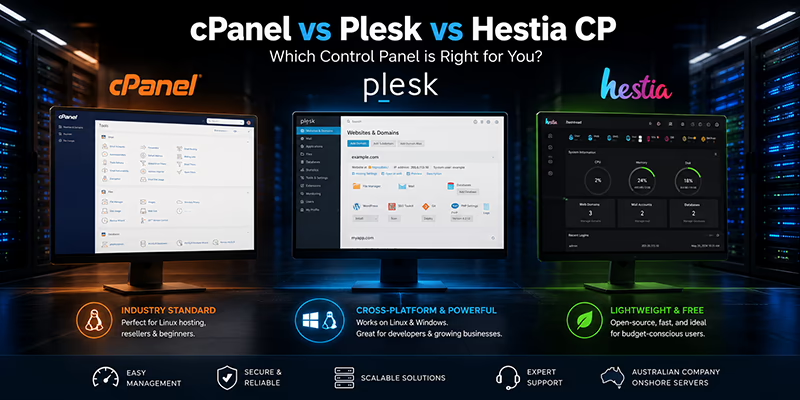
And believe it or not, that actually narrows down your options from three to one. Which is precisely what we’re about to do in this article.
It’s worth a brief primer.
A control panel is the layer between you and the raw server code—Linux or Windows. It handles site/domain setup, email accounts, databases, SSL, backups, and often client management for resellers. The panel shapes your day-to-day experience of the server far more than the underlying OS does. Two people on identical hardware can have completely different workflows depending on the panel.
Okay, so “interface layer” might sound like code for something. What it means is the software surface. How you control the nuances and how granular that control is. This layer allows you to make the most basic and the most advanced changes, from security to domain management. And truthfully, all three are pretty good if your needs are straightforward or simple.
Here’s a quick checklist to help you make up your mind without needing you to read further:
That should have helped you narrow down your options from three to one. But in case it didn’t, let’s get into the nitty-gritty of it all.
cPanel is:
With all that, cPanel also comes with a mature ecosystem, a huge community and supporting documentation, a large support base for WordPress installations/management, and broad third-party integrations (billing systems, security tools, etc.). It’s Linux-only and the license cost can be higher for you.
Plesk is:
If you need a Windows-based stack (.NET, SQL Server, etc.) alongside Linux, Plesk is the only industry option. It features a modern, clean interface more intuitive for newcomers, alongside a strong WordPress toolkit.
Hestia CP is:
Hestia CP has ecosystem limits. It has a smaller community and fewer built-in extensions compared to commercial giants. If you’re considering Hestia CP, it makes sense to first list out the integrations and apps you will need in the near future, then research whether or not those are easy to integrate. The panel itself might be easy to use, but integrating everything the hard way can become a nightmare.
Now that we have built sufficient context around all three and covered what’s important, we can summarize everything neatly into a single table:
| Factor | cPanel | Plesk | Hestia CP |
| OS Support | Linux | Linux + Windows | Linux |
| License Cost | Paid | Paid | Free & open-source |
| Typical User | Agencies, resellers, shared-hosting-style providers, Linux website owners | Mixed-OS businesses, Windows-server users, developers, enterprise WordPress setups, newcomers | Budget-conscious self-managers, hobbyists, lightweight VPS users |
| Reseller/Client Management Tools | Strong: WHM, cPanel accounts, packages, WHMCS-friendly | Strong: multi-domain/client use, WordPress Toolkit, business-friendly admin tools | Basic: can manage users/domains, but not as mature for reseller operations |
| Learning Curve | Familiar to most hosting users; lots of tutorials | Generally considered easiest/most modern UI | Straightforward for basics, but less documented for advanced setups |
| Main Strength | Industry default with huge ecosystem, integrations, documentation, WordPress support | Best cross-platform option; ideal when Windows, .NET, SQL Server, Git/Docker/Node.js matter | Lowest cost, lightweight, clean GUI, fewer server resources needed |
| Main Drawback | Linux-only, paid license, heavier on VPS resources | Paid license; can be overkill for simple Linux-only hosting | Smaller ecosystem, fewer extensions, more DIY if integrations get complex |
| Best Fit | Standard Linux web hosting, agencies, resellers, WordPress-heavy hosting | Businesses needing Windows + Linux flexibility or developer/enterprise features | Simple self-hosting, budget VPS setups, lightweight web/email/database hosting |
| Our Starting Price (excl. GST) | From $77.50/mo for cPanel Lite | From $77.50/mo for Plesk Lite | From $42.50/mo for Hestia CP Lite |
cPanel is the safest default for Linux hosting and reseller-style work. Plesk is the better business/dev choice when Windows support matters. Hestia CP is the budget-friendly option when you want a simple control panel without recurring license fees.
You might have specific questions about this whole comparison. Let’s answer them.
Both are good. cPanel is the familiar default and works well for standard WordPress hosting. Plesk is better if you want stronger built-in WordPress tools like staging, cloning, bulk updates, and developer-friendly features.
Yes. They are chosen per VPS, not company-wide. You can run Plesk on a Windows VPS and cPanel on a separate Linux VPS if needed. cPanel is Linux-only, while Plesk works on both Linux and Windows.
Yes, for a simple business website, brochure site, small WordPress site, or basic email/web hosting setup. For heavier client management, advanced integrations, or enterprise support, cPanel or Plesk is safer.
cPanel is usually the best choice for reselling hosting because WHM + cPanel is built around account management, packages, client separation, and reseller workflows. Plesk is also strong, but cPanel is the more familiar reseller standard.
You can manage a VPS without a control panel, but you need command-line/server-admin knowledge. A control panel makes websites, domains, SSL, email, databases, backups, and users much easier to manage.
The panel sits on top of the same underlying VPSBlocks infrastructure either way. NVMe/Flash storage, dedicated (not oversold) resources, self-healing failover, Australian-based servers and support, ITIL L3 semi-managed support—all panels get this. You’re not trading away performance or support based on panel choice, only trading workflow and licensing cost.
Moving between panels isn’t usually a simple toggle, it typically means a fresh server with the new panel and migrating sites/mail/databases across. It’s not scary, but it’s not free either. Migration Services exist for exactly this, and VPSBlocks doesn’t lock customers into multi-year contracts, so getting it wrong isn’t a long-term trap. If you’re genuinely torn, this is a case where starting on Build Your Own with the smallest sensible config lowers the cost of changing your mind later.
A lot of folks have questions like these and our support team is willing to help you narrow it down over a call.

advantages of virtualisation Advantages of Virtual Machines AI Virtual Machines application hosting Australian VPS hosting Benefits of VMs for Small Businesses business hosting migration business hosting solutions Container Integration content management systems Cost-Efficient IT solutions Cost Savings with VMs. Disaster Recovery VMs Disaster Recovery with VMs does website speed affect SEO hosting and website speed Hybrid Virtualisation Importance of Virtual Machines Lightweight Containers llms.txt migrate a business website to a new host Optimizing WordPress Website prepare a website for a product launch remote desktop services Scalable IT Solutions Virtual Machines for SMBs Virtual Machines Work Virtual Resource Management VM Adoption VM Scalability VM Security VM Trend VPS hosting for business web hosting and SEO Website downtime website hosting for marketing campaigns Website load time Website migration checklist website migration downtime website performance checklist Website Speed website traffic spikes website uptime and SEO WordPress WordPress Website
 My Account
 Service Status
 Help Center