Let’s face it, WordPress is one of the most popular content management systems in the marketplace today. In fact, it actually is the leader when it comes to CMS based websites with an estimated 69% of the marketplace using WordPress. If you haven’t built a website before, lets just say that building a website is always a fun endeavour. It has a lot of ins and outs that you need to follow in order to get it just “right”. Site speed is a common bug bear for most people after they have got their new website built. Unfortunately it is usually the “good ol’ web hosting provider” who cops it when the website goes live and the site takes quite a few seconds to load fast. Fact of the matter is, the website more than likely needs to be optimized. We have put together a series of tips and tricks you can do to get your WordPress optimized for performance.
Before we begin though, we are going to assume that you have already got a few things configured and that you have a VPS through yours truly, us! If you haven’t, do not worry, there is still a list of things you can do or ask your hosting provider to help setup for you that will help get your WordPress site loading quicker than ever.
Before going down this rabbit hole of optimizing your website, you really need to have a few tools handy. These tools will help you get through the following process. Keep in mind, we are going to make quite a few assumptions along the way. One of them is going to be that you are a Windows PC user. Without further ado, here is the list of tools you will need:
Often when a new website is built, it just is not optimized at all. Starting off, open your favourite web browser in Incognito mode / Private Browser Window. Right click in the middle of the window and go to Inspect, then click on the “Network” tab in the window that pops up. Then navigate to your website. You should see the website popup across the top, but across the bottom of the screen you should now see a lot of information pop up, that looks very similar to the image below.
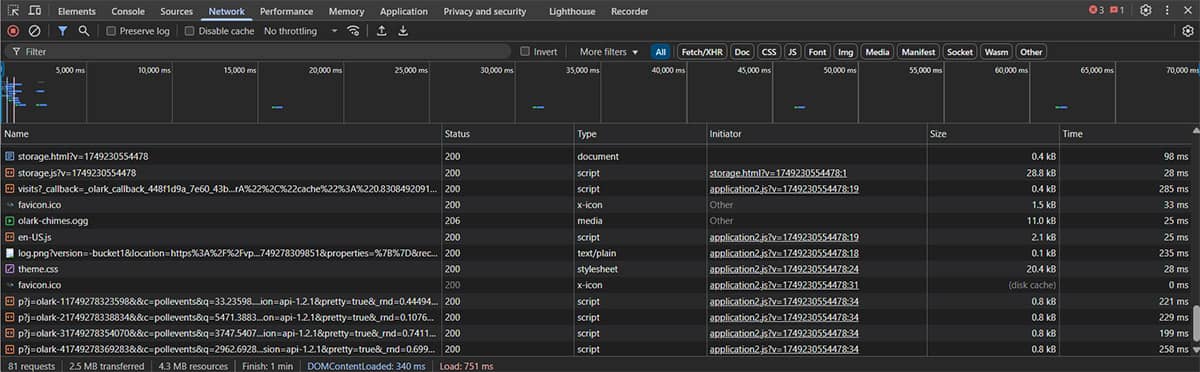 Chrome DevTools Network panel showing resource load times and HTTP statuses for a web page.
This panel is filled with helpful information. The first to take note of is the strip across the bottom. It has total requests, data transferred, how many resources used, total time to finish loading the page (keeps going even after page has loaded), DOMContentLoaded time and initial page load time. This gives us a good indication of what is going on. While it is not the be all and end all, it gives a lot of helpful information. Firstly, the second and 3rd colum with data transfered and resource size. The larger these 2 numbers are, ultimately the slower the site will be to load. This all should be fairly reasonable to understand. Quite often, you will find that if your site is UNOPTIMIZED that these 2 values will be 10MB or higher. In some cases we have seen 40-50MB in size and the load time has shown 30s or more.
There is 3 columns you need to look at in order to work out where the problems lie. The first is the “Size” Column. Simply click on the “Size” column twice and it will show you the largest files to the smallest. If you have a look at the size, it will tell you how big the file is. On the very left it will show you the filename. This is important. You need to know what files are big and identify whether they can be compressed or optimized in anyway. We want to do it to things we know for sure are going to be an issue. If an image for example is over 1MB in size, these days, it is safe to say it is unoptimized. Files with filename.png and filename.jpg can usually be optimized further and shrunk down in size. Some other files can be ones ending in .js, .mov, .mp4, .mpeg, .css just to name a few.
While you may think status in day to day life is not important. The opposite should be said about status of pages and referenced items in your sites code. If you are seeing a status code of 301, 302, 404 or 50x, then chances are, they are going to be hindering your websites loading speeds. This is because the wrong status code can mean the browser is left looking for the specified piece of information for an extended period of time. Let’s even say 5-10 seconds. This is not ideal for anyone visiting your site. The good thing is that the guess work behind it is removed because you can filter it in highest to lowest order, just like the size and time columns. It will also tell you what file is the culprit here.
Why is it that images are always the first thing people hit when optimizing a website? The reason is really simple. They are the easiest to optimize. It is just understanding how to optimize them and why it is important to. The most common issue with unoptimized images is the fact that most of them are either PNG or JPG images. They can be generally unoptimized in 3 different ways. The first is that the image size on the screen is not the same as the original image size. This will add load time. The great news is that these days (at time of writing at least), unless a user has a 4k screen (and surprisingly enough many still don’t), the largest image size you would ever likely need is no more than say 3000px wide. The next image issue is file size. Most still have many things in them that are unoptimized. This can include meta data, image quality and even the right file format can make the world of difference. Finally the last way an image is not optimized is it is not compressed during its saving process. Below is an example of 1 image that has to go through the optimization process.
While some people will argue, file size doesn’t matter, neither does file types these days. That is not true, each of those factors are important. First off, most browsers today will support 3 newer file formats. SVG, WEBp and AVIF are the extensions and they are both very cool in the way that they work. Typically sites in the past have been built using png or jpg as the main image formats by most graphic designers and website designers. However these newer kids on the block are game changers. For the purpose of this article though, we will show you how to optimize each of them as best as possible while keeping search engines and users happy.
 AVIF Uncompressed and Unoptimized – 54kb
 JPG Uncompressed & Unoptimized – 234kb
 PNG Uncompressed & Unoptimized – 282kb
 SVG Uncompressed & Unoptimized – 379kb
 WEBp Uncompressed & Unoptimized – 85kb
 AVIF Uncompressed and Optimized – 11kb
 JPG Uncompressed 70 percent quality – 78kb
 PNG Uncompressed 8-bit – 124kb
 SVG Uncompressed and Optimized – 81kb
 WEBp Uncompressed and Optimized – 43kb
 AVIF Compressed and Optimized – 9kb
 Compressed 70 percent quality jpg – 18kb
 PNG Compressed 8-bit – 24kb
 SVG Compression and Optimization – 80kb
 WEBp Optimized & Compressed – 42kb
As you will have just seen with the optimization, depending on the image, the file extension and the compression methods or options available, the optimization can take a relatively large image in both filesize and physical size and make them significantly smaller with little to no noticable difference for the end consumer. Doing this across an entire site with the correct combination can lead up to an 80% decrease in overall image filesize and more importantly, lead to significantly quicker load times.
These image optimizations have been done through a combination of using Affinity Designer and 3rd party compression tool websites like https://www.compressor.io. They are both great at enabling users with little to no design knowledge or skills to be able to optimize the image file size without losing detail and costing an arm or a leg to get it done.
You can use similar styled tools for the likes of video optimization and audio compression etc. Although, you will likely have to spend a bit of time doing a search to find the right tool that will work well for the majority of the time.
When it comes to keeping site load speeds as low as possible, it is important that you have your data compression underway. This is one things that will not only save you bandwidth, it will also help you shave seconds off of your load time. People will make comments like “have you got GZip compression enabled” and it is a great comment. The frustrating thing is, not every web server has it enabled by default and more importantly, some do not use GZip compression as the compression tool. There is a basically 2 main options when it comes to compression, GZip and Brotli. Here is a brief overview of both options for you, starting with GZip.
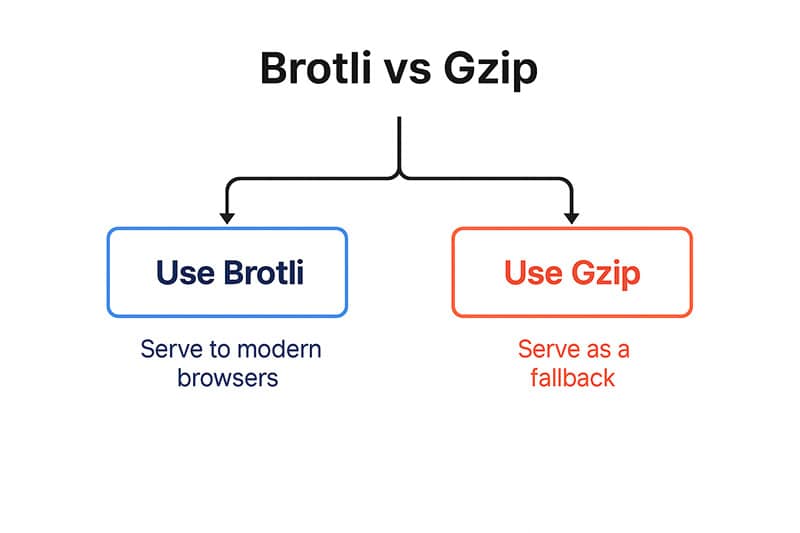
Knowing which one to use can be tricky as they both have pro’s and con’s. The cool thing though is you do not have to choose. You can use BOTH, with Brotli being the preferred choice where possible. In the best practice setup of running both, you would have Brotli (br) set as the preferred content encoding method. You then would set GZip as the fallback option. To do this you would let the server negotiate based on client support (aka the Accept-Encoding header). In WHM/cPanel you can enable both modules by installing them through EasyApache.
Ok, that heading is a little over the top but it is somewhat true. LSAPI which in full is LiteSpeed Server API as a PHP Handler is generally speaking much better than PHP-FPM. PHP-FPM is FastCGI Process Manager) and has been the go to option for lots of hosting panels and hosting solutions over the years. LSAPI though is purpose-built for LiteSpeed (and for that matter OpenLiteSpeed) web servers. It handles requests more efficiently than PHP-FPM, which does in turn, result in faster response times and reduced server loads. WordPress sites with moderate to high traffic also benefit from LSAPI’s ability to scale concurrent PHP Processes without creating bottlenecks. LSAPI manages and resuses PHP worker processes without the manual tuning, memory leaks and crashes which often comes from PHP-FPM not being fined tuned well before its used.
LSAPI also is great for the use of WordPress installations that use persistent caching plugins like LiteSpeed Cache as a result of its built in Opcode Cache Management. Something that PHP-FPM lacks out of the box. When you put all of this in to perspective, very quickly LSAPI becomes the clear PHP Handler of choice for WordPress website owners. To keep this simple and on point, ultimately, if you are serious about improving your WordPress websites performance, LSAPI is the clear winner. Ultimately it has better resource utilization, stability under high load and seamless integration with many of WordPress’s caching plugins.
We have all heard the saying “Cash is King” in the past. It was very true for a lot of reasons. Online, the saying of “Cache is King” is probably equally as true and beneficial for websites. Especially WordPress websites that need performance. There are plenty of caching options and methods available, but which one is worth its weight in gold? We are going to look at both Nginx and Redis as they seem to be the go to options/methods used on WordPress websites by different high traffic site owners. Both have their place and both can be ideal, caching is one of the most powerful ways to get that performance you need to reduce load times and server strain. There is a bit of confusion by users as to which is best and why.
Nginx is the king of page caching with WordPress site optimization. Nginx can cache full HTML pages generated by WordPress and server them directly from disk or memory. Doing this allows the server to completely bypass the need to use PHP and MySQL completely for repeat visitors. You may have heard of Rever Proxy Caching or Static Page Caching. This is exactly what Nginx is doing. A few style of sites that this works well for includes:
A few things that lead to it being great is the fact that it is extremely quick at loading cached pages, it reduces load on PHP and MySQL and works well before WordPress will fire up. A couple of area’s it does not cope well with is:
The go to for Object Caching is none other than REDIS. It does carry out database related queries and WordPress internal objects in memory very well. An example list of database related queries and objects it handles well includes:
To put this in to perspective, it works well with sites that have user logins built in to them. For example, WooCommerce based sites or ones with membership area’s. The other great use is in sites with lots of database interactions and dynamic content. Basically if it requires lots of different questions being asked, then this is the go to tool. It reduces MySQL load significantly, speeds up backend and logged in user experience. It also works well with WordPress Transients, WooCommerce sessions and admin requests.
There are a few drawbacks though, just like Nginx, it has its weakpoints. This includes the following:
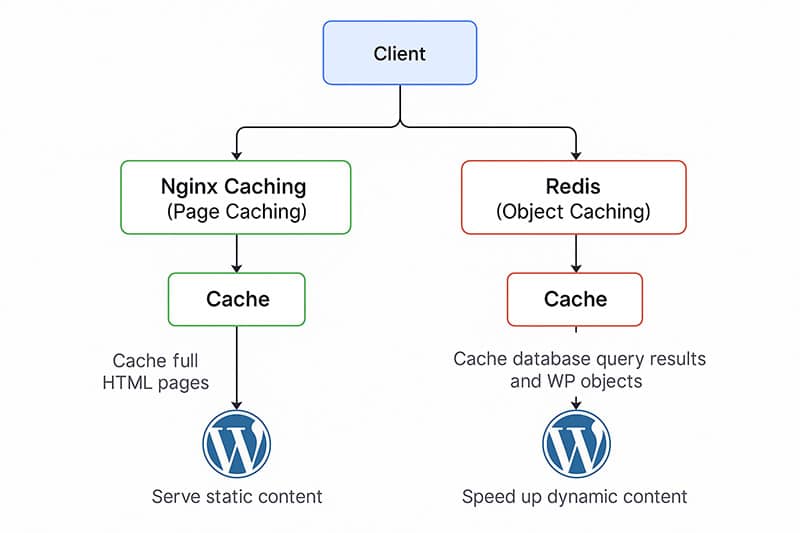 Comparison of Nginx page caching vs Redis object caching in WordPress performance optimization.
So you are probably asking “which one should I go with?”. It is a very good question. In the ideal world, for a busy e-commerce website with a blog for example, you would probably want to run both. If it was a membership driven site, without a doubt, you would choose REDIS. If however it is a simple brochure styled site with a small blog, then running NGINX would be your go to. If you were to do a general “this option is best 98% of the time”, chances are Nginx is going to be a great idea. If you have a VPS (which lets face it, our customers do), then Nginx is a great start and if you can afford the extra money, get that extra RAM required and go with Redis as well. It will make a difference.
Just as you saw with other Caching scenario’s, there is no single product that reins supreme over another in every single aspect. This is why it becomes a personal preference and also dependant on the style of site you have. There are a few “Go To” options in the WordPress directory. Some of the free options with PRO/Paid upgrade options are great. This includes the likes of Hummingbird, WP Fastest Cache & W3 Total Cache to name a few. WP Rocket and WP Optimize are also noteworthy contenders that should make your list. Once again, they have their place and ideal situations. While some have overlaps, we won’t specifically go in to the details of a single one but do some trial and error testing. You will see some great results.
If you are a novice WordPress site owner, this following section may not be the best option for you to follow through with but there is a few settings in here that you can adjust that will help improve performance of your WordPress installation. First of all login to your wp-admin dashboard, then visit https://www.yourwebsite.com.au/wp-admin/options.php. On this page you want to update the following settings:
The wp-config.php is one file that is often under utilized when it comes to optimizing your WordPress installation. The following are options you can implement in to your wp-config.php file in order to get some performance increases. Some will be small changes, some will be significant in the outcome. Adding the lines in to wp-config.php file which you can do via File Manager in cPanel or via WinSCP is the easiest way to do this. Here they are:
define(‘WP_POST_REVISIONS’, 5);
define(‘DISABLE_WP_CRON’, true);
define(‘WP_CACHE’, true);
After completing the significant list of suggested changes mentioned in this article, you need to test and measure your websites performance. The proof will be in the pudding. Some websites will achieve better results than others, there is no doubt about this. The answer to the question have you been successful in optimizing your WordPress website performance on your VPS is quite easy. If your load time when you test the page has dropped by even half a second, there is an element of success but typically people can expect in an unoptimized site to see anywhere up to 80% faster page load times. While this is a significant number, it is not always achieved but in more cases than not, it does happen. Before you test, use a couple of testing tools like Google PageSpeed Insights and WebPageTest.org to get a few baseline numbers. Once you have completed making the changes, test on those same sites again and see what difference you have been able to make. It will also help determine if you have been successful.
If after reading this article you feel that this is an awful lot of work and you are not confident you could do it yourself. Reach out to our technical support team for assistance.

advantages of virtualisation Advantages of Virtual Machines AI Virtual Machines Benefits of VMs for Small Businesses Cloud Computing Commercial Hypervisors Container Integration content management systems Cost-Efficient IT solutions Cost Savings with VMs. Disaster Recovery VMs Disaster Recovery with VMs Effective Hypervisor Management Evolution of Virtual Machines Hosting Hybrid Virtualisation Hypervisor Basics Hypervisor Management Importance of Virtual Machines Lightweight Containers Optimizing WordPress Website Resource Allocation Challenges Resource Isolation Scalable IT Solutions Training Simulations. virtual machine Virtual Machines Virtual Machines for SMBs Virtual Machines vs Containers Virtual Machines Work virtual private servers Virtual Resource Management VM Adoption VM Scalability VM Security VM Trend VM Use Cases When to Use VMs WordPress WordPress Website

Enter the promo codes below on the checkout page.
80% OFF FIRST MONTHLY*
80% off your first monthly payment.
Code: 80OFF
30% OFF FIRST ANNUAL*
30% off your first annual or semi-annual payment. You can save hundreds.
Code: VPSHOST30
* These offers may be used once per customer for new VPS orders only.
 My Account
 Service Status
 Help Center